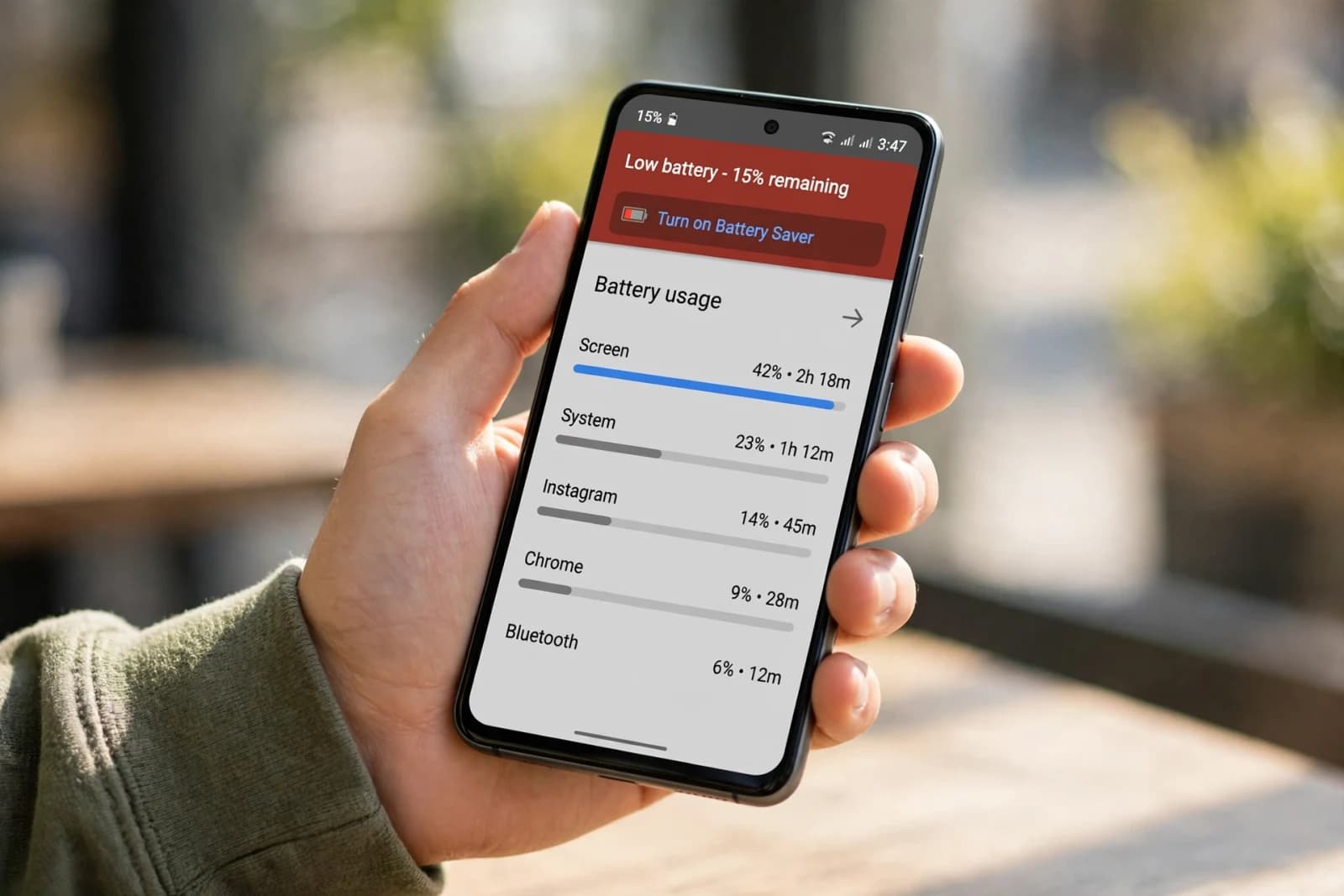
You charge your phone to 100 percent in the morning, and by lunch it is at 40 percent, even though you barely used it. Or it drops 10 percent overnight while you were asleep. That is not normal aging in most cases, it is one app, one setting, or one bad update draining power in the background. This guide shows you how to find that culprit in 2 minutes, fix it without losing notifications you actually need, and test whether the fix worked.
The 2-minute test
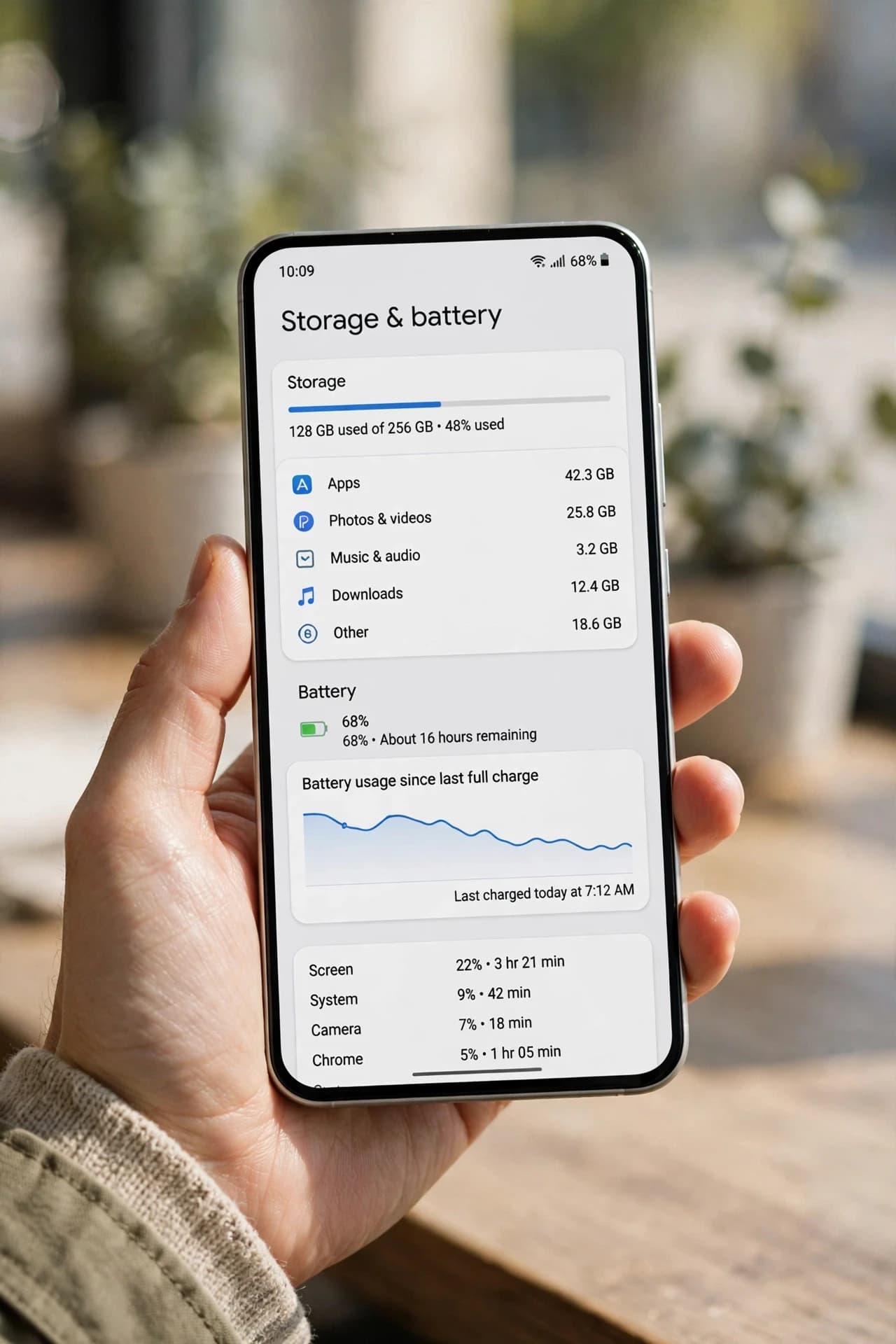
Open Settings, then Battery, then Battery usage, and look at the last 24 hours. There are three numbers to check:
1. Top app percentage. If one app is over 20 percent and you barely opened it, that is your suspect.
2. Screen vs background. If background use is higher than screen use for that app, it is working while you are not looking.
3. Overnight drop. If the phone drops more than 10 percent overnight with the screen off, background drain is the problem, not screen brightness.
Write down the top app name. You will need it in the next step.
Step 1: Restrict the top app
For the top app, go to Settings, Apps, Battery use, and set it to Restricted if you do not need instant notifications from it. For shopping, games, and food delivery apps, restricted is usually fine.
For messaging, banking, and maps, be careful, restricted can delay notifications. Instead, for those apps, limit location to While using the app, and turn off background data only if you can live without instant updates.
Step 2: Fix location permissions
Many apps ask for Always location, even when they only need it while you are using them. Change Always to While using the app for social, shopping, and photo apps. Turn off location for apps that have no reason to know where you are at all.
Real example: a delivery app checking location every few minutes can drain more than an hour of screen time, even if you never opened it that day.
Step 3: Check screen and network
After the top app, check screen and network. High brightness and high refresh rate use more power, but they are not usually the main drain if background use is high. Lower brightness to auto and test for a day.
Weak signal makes the phone work harder. If the battery drops fast only in one place with poor signal, that is signal, not an app. 5G in a weak area can drain faster than 4G, so test by switching to 4G for a day if your phone allows it.
Step 4: Test the fix
After restricting the top app, use the phone normally for 24 hours, then check Battery usage again. If the top app percentage drops and total drain improves, you found it. If nothing changes, check the next app, or check if a recent app update started the drain.
If the drain started right after an update, that update is the first suspect. Update the app again or reinstall it.
What NOT to do
Do not close all apps constantly. Android manages background apps, and reopening them uses more battery than keeping them paused.
Do not install a battery saver app that runs all day. It usually adds to the drain it claims to fix.
Do not turn off everything at once. If you turn off location, background data, notifications, and sync all at once, you will not know which fix actually worked, and you will miss messages you needed.
When it is a hardware problem
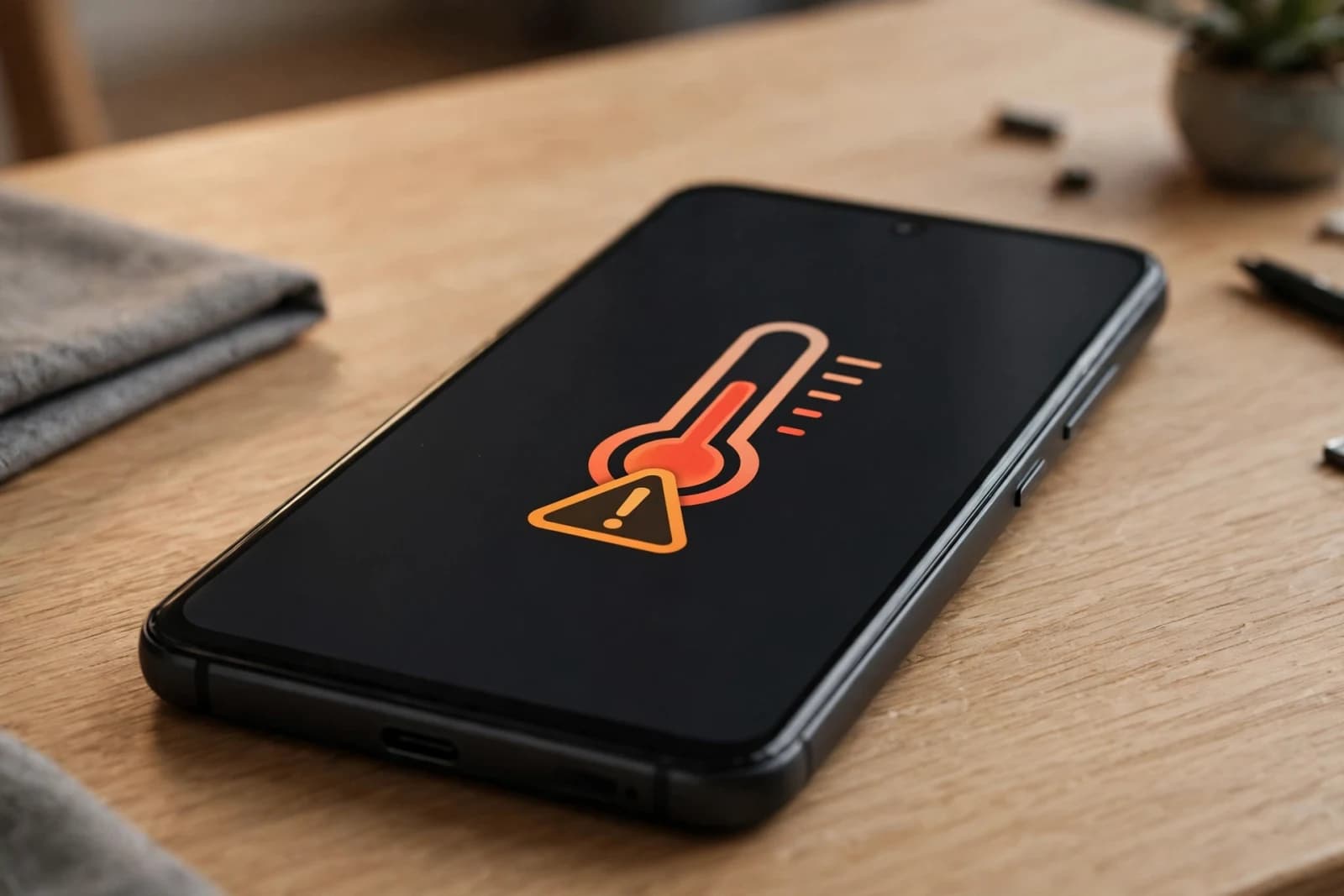
If the phone swells, shuts off at 20 percent, drops very fast even in airplane mode, or gets very hot while idle, get the battery checked. No setting fix will help a failing battery, and a swollen battery is a safety issue, so do not keep using it.
Quick recap
- One app over 20 percent with low screen use: check Battery usage for the last 24 hours, restrict background use, and limit location.
- Overnight drop over 10 percent: check Battery usage during the screen-off period, and restrict the top background apps.
- Drain only in a weak signal area: check signal strength, and switch to 4G for a day as a test.
- Drain after an update: check the update history, then update that app again or reinstall it.
FAQ
Does dark mode save battery? On OLED screens, yes, a little. On LCD screens, almost no difference.
Is it normal for a new phone to drain fast in the first week? Yes, while it learns your usage and restores data. If it continues after a week, follow the steps above.
When is it a battery hardware problem? If the phone swells, shuts off at 20 percent, or drops very fast even in airplane mode, get the battery checked.
Do I need a battery saver app? No, the built-in battery settings and the steps above are enough for most users.
Related guides
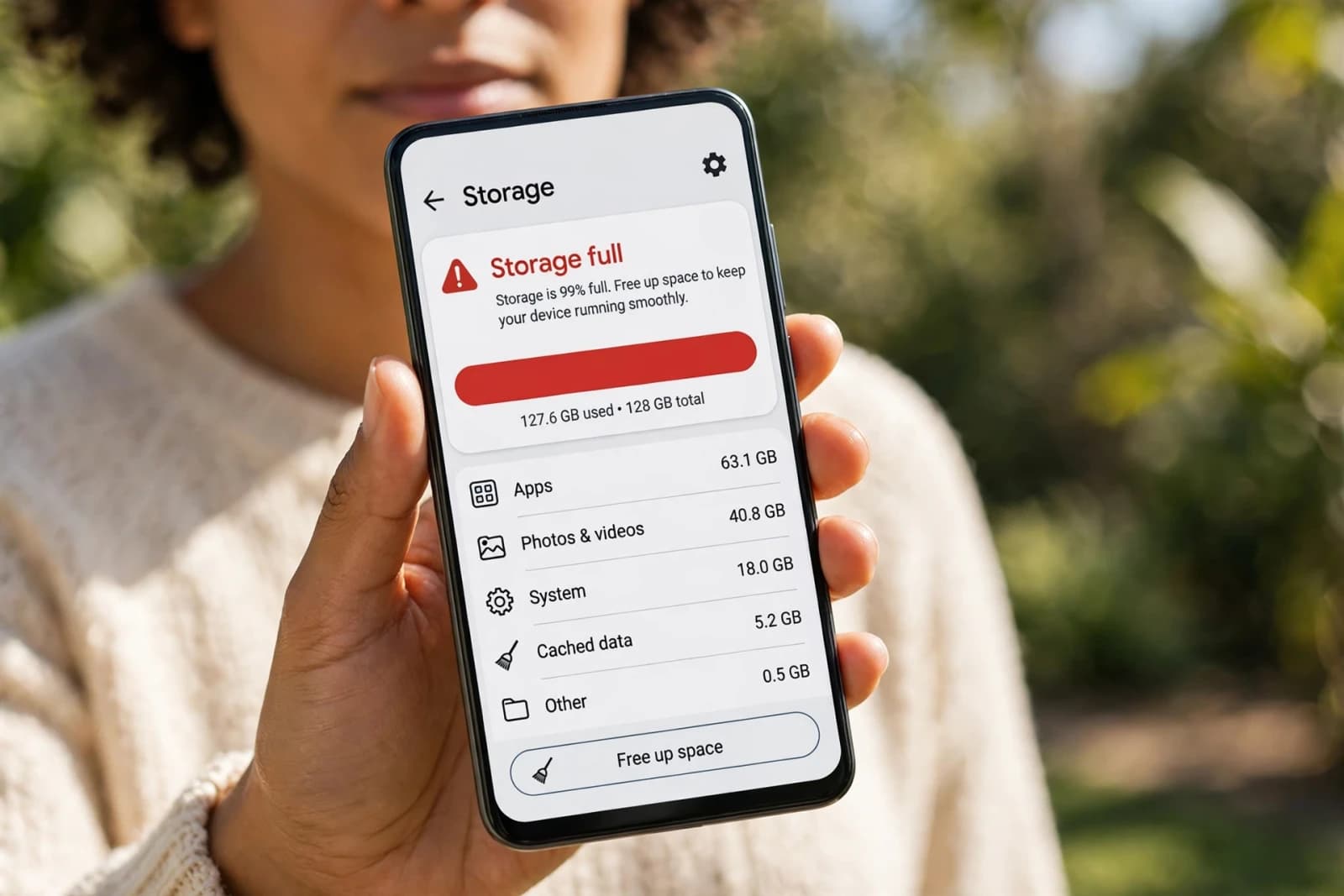
Next, read the slow Android phone guide and the storage guide in the same series, so you fix speed, storage, and battery together.