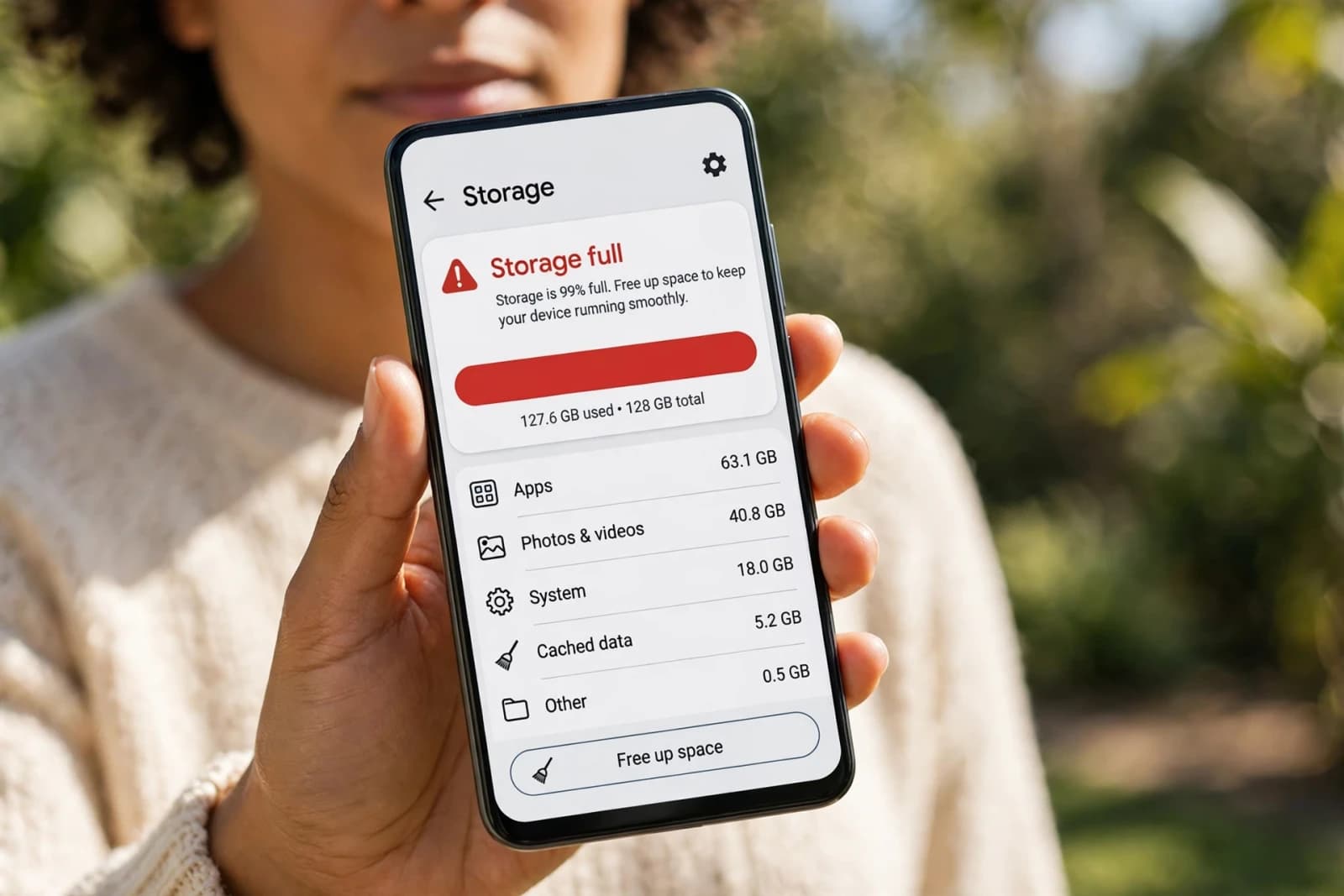
You try to take one photo and your phone says storage full. You try to update an app and it fails. You delete 10 photos, and the warning comes back the next day.
That is because photos are rarely the real problem. On most Android phones, downloads, WhatsApp videos, and app cache take more space than your camera roll, and deleting photos one by one is the slowest, most painful way to fix it. This guide shows you where your space actually went, and how to free 10 GB or more without losing a single memory.
The 2-Minute Audit
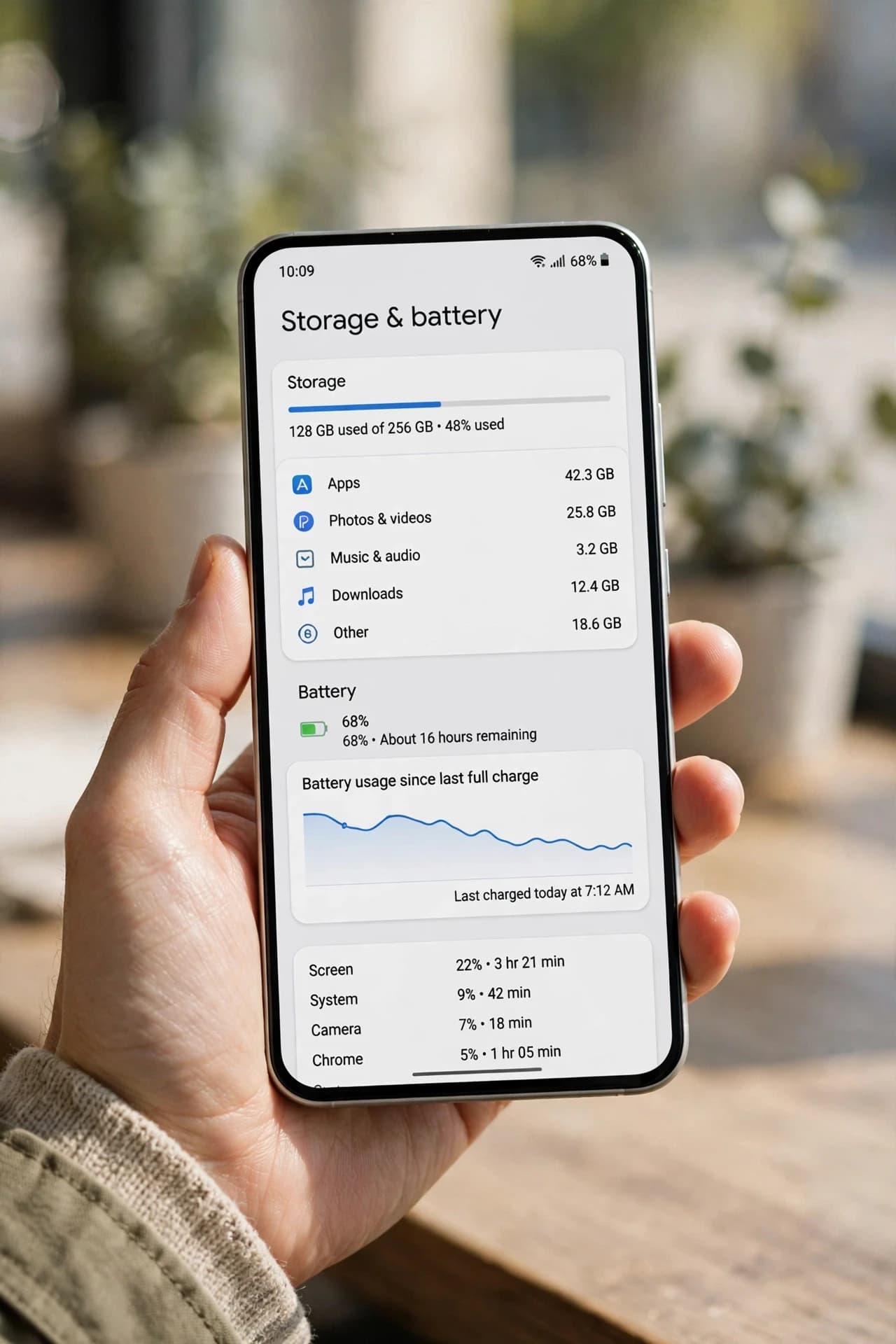
Open Settings, Storage, and look at the breakdown, not just the total. Write down the top 3 items. Usually they are:
Apps - games and social apps, often 10 to 30 GB combined
Photos and videos - often less than you think, if you already back up
System and cache - temporary files that grow every day
Downloads and other files - the forgotten folder, often 2 to 5 GB
If Downloads plus cache is over 5 GB, you can fix most of the problem in 10 minutes, without touching your photos.
Step 1: Downloads First
Open Files, Downloads, sort by size. Delete old PDFs, videos you already watched, APK installers, and duplicate downloads. Real example: one phone had 3.8 GB in Downloads alone, including 12 videos forwarded twice and 4 old APK files. None of it was missed after deletion.
Step 2: WhatsApp Media
Go to WhatsApp, Settings, Storage and data, Manage storage, sort by size. Delete large forwarded videos first, then chats with hundreds of media files you no longer need. Keep the chats, delete the media. If a video matters, back it up first, then delete it from WhatsApp.
Step 3: Cache
Clear cache for Chrome, Instagram, Facebook, YouTube, and your browser. Each can hold 500 MB to 1 GB. Clearing cache does not delete your account, photos, or chats. It only deletes temporary files, which rebuild the next time you open the app. Do NOT tap Clear data here - that signs you out and can delete local data. Cache is safe, data is not the same thing.
Step 4: Back Up Photos, Then Free Up Space
First, check that Google Photos or your backup app says Backup complete. Then, in your gallery app, use Free up space. That removes local copies that are already backed up, and keeps them in the cloud. Do NOT delete the whole DCIM folder, and do NOT delete photos from the gallery before backup is complete.
Step 5: Big Apps
Sort apps by size. Games are often 2 to 5 GB each. If you have not played a game in a month, uninstall it - you can reinstall it later and your progress is usually saved in your game account.
Quick Recap
Downloads over 2 GB: check Files, Downloads, sort by size, delete old PDFs, videos, APKs.
WhatsApp over 1 GB: check WhatsApp, Manage storage, delete large forwarded videos, keep chats.
Cache over 500 MB per app: check Settings, Apps, Storage, clear cache, not Clear data.
Photos taking space: check backup status first, back up, then Free up space.
Game over 2 GB unused: check Apps, sort by size, uninstall, reinstall later if needed.
What NOT to Do
Do not delete the whole DCIM or Android folder - that can break apps and lose data.
Do not clear data for banking or messaging apps just to free space - you will be signed out and may lose local chats.
Do not delete photos before backup is complete - that is how memories are lost for good.
FAQ
Why is storage full even after I delete photos? App cache, downloads, and large app data often take more space than photos.
Is it safe to clear cache? Yes, cache is temporary and rebuilds when you open the app again.
How much free space should I keep? Aim for at least 10 to 15 percent free, so updates and photos can save without errors.
Will freeing space make my phone faster? Yes - if storage was under 10 percent free, freeing space usually also fixes lag, app update failures, and camera errors.
Related Guides
Next, read the slow Android phone guide and the battery drain guide in the same series, so you fix speed, storage, and battery together, not one at a time.